First Look Nomad 1.11.x - Secret Block
The next Nomad 1.11.x feature we will be looking at is Artifact Secrets which introduces a new secret block in the job specification to simplify the process of fetching secrets for your Nomad jobs in addition to one key difference compared to the existing template block.
Out of the box there are two built-in plugins which support Nomad variables and Vault. In addition to the built-in plugins there is a secret provider plugin framework which allows community or privately built plugins to support their secrets management systems. For example, check out the demo they provided for AWS Secrets Manager.
Note on my Setup#
For this post, portions of it I will be using Vault to manage my secrets. If you do not have Vault set up and would like to spin up a development instance to test with, check out the workload identity tutorial for a quick start.
Before Diving In#
I want to make it clear that the new secret block is not a 1 to 1 replacement for the existing template block. They both have their own use cases and could potentially be used together in the same job specification.
The most notable feature with the secret block is that it can be interpreted in your job specification, which the template block could not do. I’ll get into more detail on that after this.
When it comes to grabbing secrets to be used in your workloads, the secret block is best suited for single execution workloads such as batch, dispatched, or periodic jobs that need secrets at start time. For longer running workloads that may need to dynamically refresh secrets or other configuration, the template block would still be the recommended as it can more dynamically manage your workloads if there is a change.
For example, if you were to fetch a TLS certificate from Vault using the template block and you want the task to restart when the certificate is renewed, you would do something like this:
template {
  data = <<EOH
{{ with pkiCert "pki/issue/foo" "common_name=foo.service.consul" "ip_sans=127.0.0.1" "format=pem" }}
{{ .Cert }}
{{ .CA }}
{{ .Key }}{{ end }}
EOH
  destination   = "${NOMAD_SECRETS_DIR}/bundle.pem"
  change_mode   = "restart"
}
When and if there is a change, the task will be restarted to pick up the new certificate. This is not something that can be accomplished with the secret block as it is only fetched at start time and cannot trigger restarts on changes.
With that out of the way, lets dive into the new secret block and see how it works.
What Makes the Secret Block Special?#
The main advantage of using the secret block is that it can be interpreted in your job specification. This means you can directly reference secrets in your job specification or prestaged configuration in order to authenticate to pull images or artifacts.
To show what this looks like, let’s start with a very simple image I built and stored privately in GitHub’s container registry and see how Nomad currently acts when attempting to pull without authentication.
job "secret-image" {
  datacenters = ["*"]
  group "http" {
    count = 1
    network {
      port "http" {
        to = 8090
      }
    }
    task "http" {
      driver = "docker"
      config {
        image   = "ghcr.io/benjamin-lykins/nomad-secret-block-demo:latest"
        ports   = ["http"]
      }
    }
  }
}
We get this pleasant message in the UI:

So it looks like we cannot get the image due to authentication issues and this is where the secret block comes into play.
Historically, authentication for the Docker task driver was handled within the auth block in the job’s task specification. Which could require some configuration to be staged prior to running the job.
Now we can do it this way:
- Make sure you have a valid GitHub personal access token (PAT) with the
read:packagesscope.

- We will keep it easy and store it as a Nomad variable at
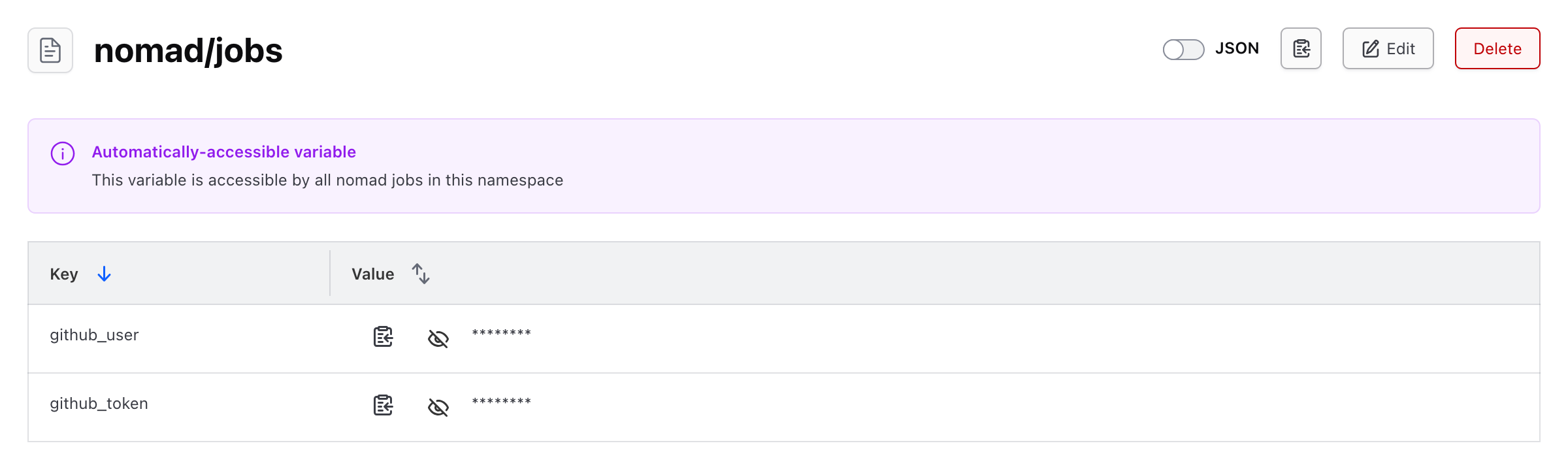
nomad/jobs- you might want more narrow scoping in your environments, but for testing this is simple enough - with the keygithub_token. I will also include my GitHub username as a variable atnomad/jobswith the keygithub_userto easily reference it in the job specification.
- Update the job specification to use the new
secretblock to fetch the token from Vault and use it in theauthblock for the Docker driver.
task "http" {
    driver = "docker"
    config {
      image   = "ghcr.io/benjamin-lykins/nomad-secret-block-demo:latest"
      ports   = ["http"]

      auth {
        username = "${secret.github.github_user}"
        password = "${secret.github.github_token}"
        server_address = "ghcr.io"
      }
    }
  }
  secret "github" {
    provider = "nomad"
    path     = "nomad/jobs/"
  }
There are two key takeaways here:
- The
secretblock was added which defines where to fetch the secrets from. In this case, we are using the Nomad variable provider to fetch both the username and token fromnomad/jobs/. - Updated my task configuration to reference both the username and password in the
authblock using${secret.github.github_user}and${secret.github.github_token}syntax.
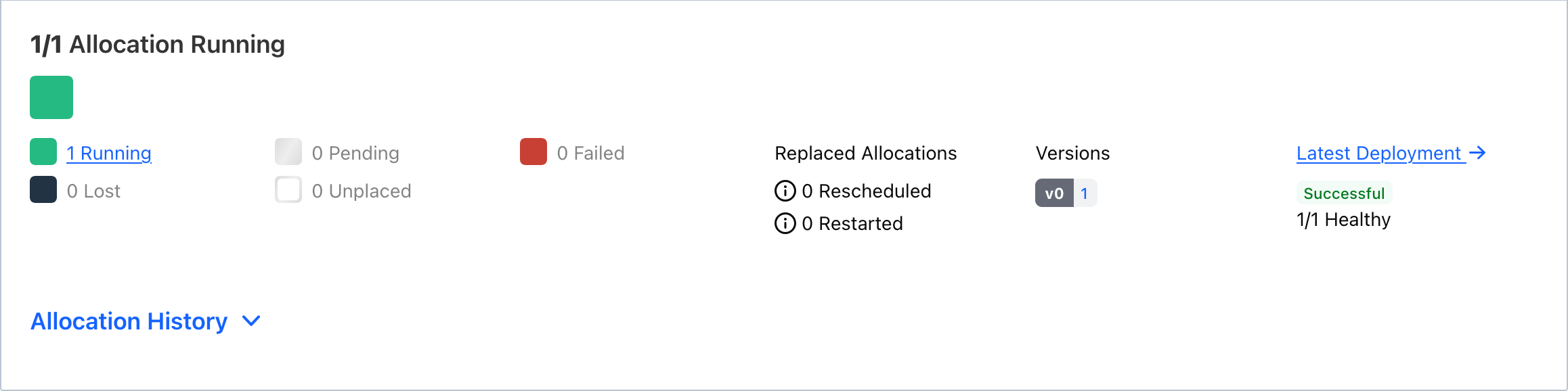
- Running the job now successfully pulls the image from GitHub’s container registry. Voilà - up and running!
This provides a much simpler way to manage authentication for pulling images or artifacts in your Nomad jobs.
And although I have only tested this with Docker, it should also simplify authentication for other task drivers that support downloading artifacts and images.
Diving a Bit Deeper#
I wanted to play around a bit more and see how the new secret block compares to the existing template block for fetching secrets and using them within your workloads. Say if you have a secret stored in Vault which you want to use in your task as an environment variable.
Fetching Secrets with the Template Block#
Previously, the only option was to use was the template block in your job specification to render secrets or configuration from Vault, Nomad, Consul, or local files. This is built with go templating and uses Consul Template under the hood. This was a powerful and flexible way to manage secrets, but it did come with some complexity. Additionally, you are limited to placing this in the task block.
job -> group -> task -> template
Here is an example of using the template block to fetch a secret from Vault and inject it into the task’s environment variables:
job "template-block-demo" {
  type = "service"

  datacenters = ["dc1"]
  group "template-block-demo" {
    task "template-block-demo" {
      driver = "exec"
      template {
        destination = "secrets/file.env"
        env         = true
        data = <<EOF
SECRET = "{{ with secret "kv/data/default/template-block-demo" }}{{ .Data.data.secret }}{{ end }}"
EOF
      }

      vault {}

      config {
        command = "/bin/sh"
        args = [
          "-c",
          "while true; do echo \"Secret $SECRET\"; sleep 5; done"
        ]
      }
    }
  }
}
Verifying this works as expected, we can see the secret being printed out by the task:
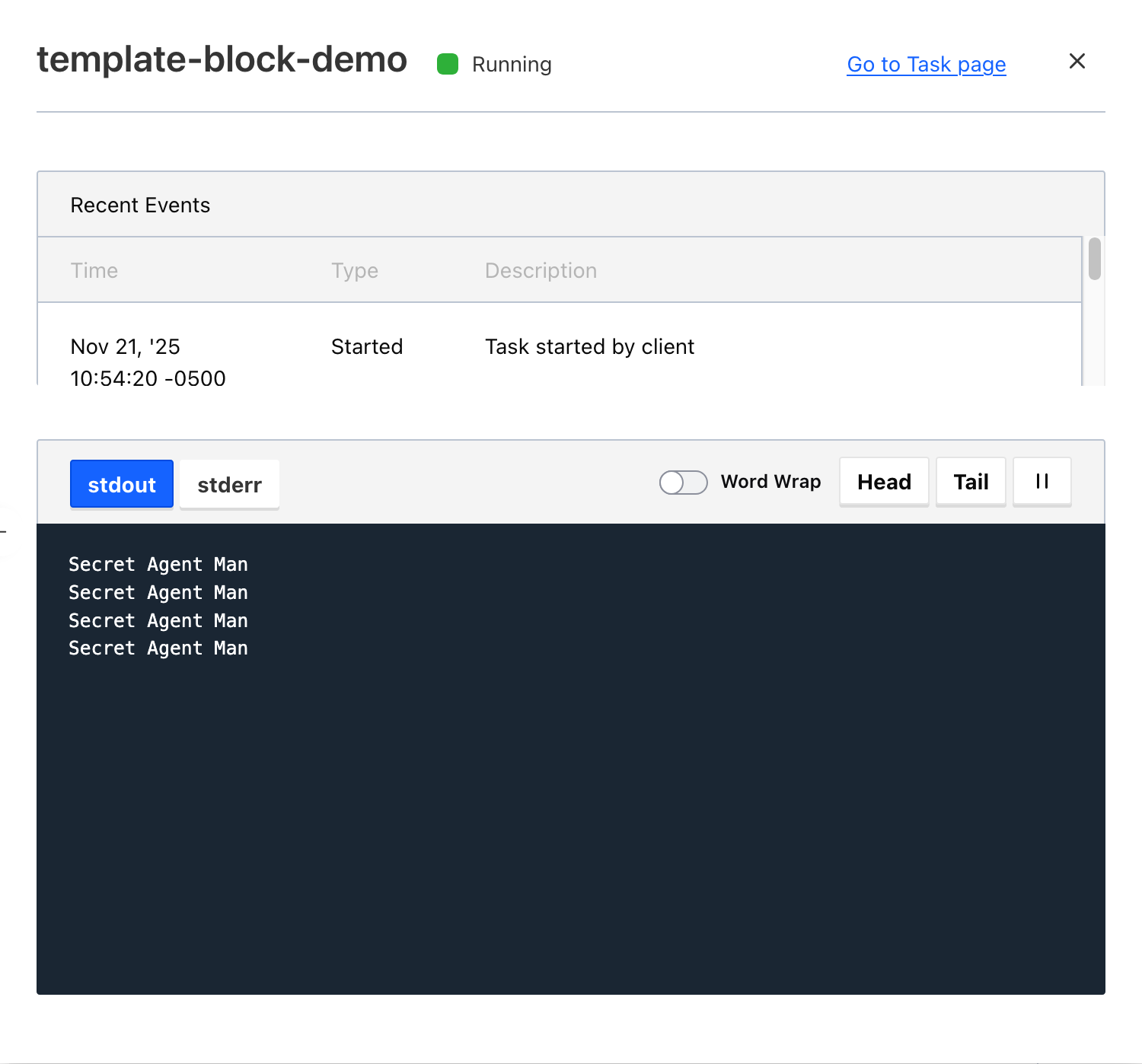
So you can see the template block is working and pulling the secret from key secret with a value of Agent Man.
Fetching Secrets with the Secret Block#
With Nomad 1.11.x you can now define secrets directly by using the new secret block in your job specification.
This block can also be used in more levels than just the task block. So if you had a common token or secret to pull images or artifacts, you could define it at the job or group level and reference it in multiple tasks.
job -> secret
job -> group -> secret
job -> group -> task -> secret
Recreating the previous example using the new secret block. I will define the secret at the job level this time, moving it from the task block, so it can be reused across multiple tasks if needed.
  secret "my_secret" {
    provider = "vault"
    path     = "kv/data/default/secret-block-demo"
    config {
      engine = "kv_v2"
    }
  }
I reference the secret directly into the task’s config using ${secret.my_secret.secret} syntax versus templating and injecting it in as an environment variable.
Which will take the task config from this:
      template {
        destination = "secrets/file.env"
        env         = true
        data = <<EOF
SECRET = "{{ with secret "kv/data/default/template-block-demo" }}{{ .Data.data.secret }}{{ end }}"
EOF
      }

      config {
        command = "/bin/sh"
        args = [
          "-c",
          "while true; do echo \"Secret $SECRET\"; sleep 5; done"
        ]
      }
To know being able to reference it directly like so:
  args = [
    "-c",
    "while true; do echo \"Secret ${secret.my_secret.secret}\"; sleep 5; done"
  ]
Full job specification below:
job "secret-block-demo" {
  type = "service"

  secret "my_secret" {
    provider = "vault"
    path     = "kv/data/default/secret-block-demo"
    config {
      engine = "kv_v2"
    }
  }

  datacenters = ["dc1"]
  group "secret-block-demo" {
    task "secret-block-demo" {
      driver = "exec"

      vault {}

      config {
        command = "/bin/sh"
        args = [
          "-c",
          "while true; do echo \"Secret ${secret.my_secret.secret}\"; sleep 5; done"
        ]
      }
    }
  }
}
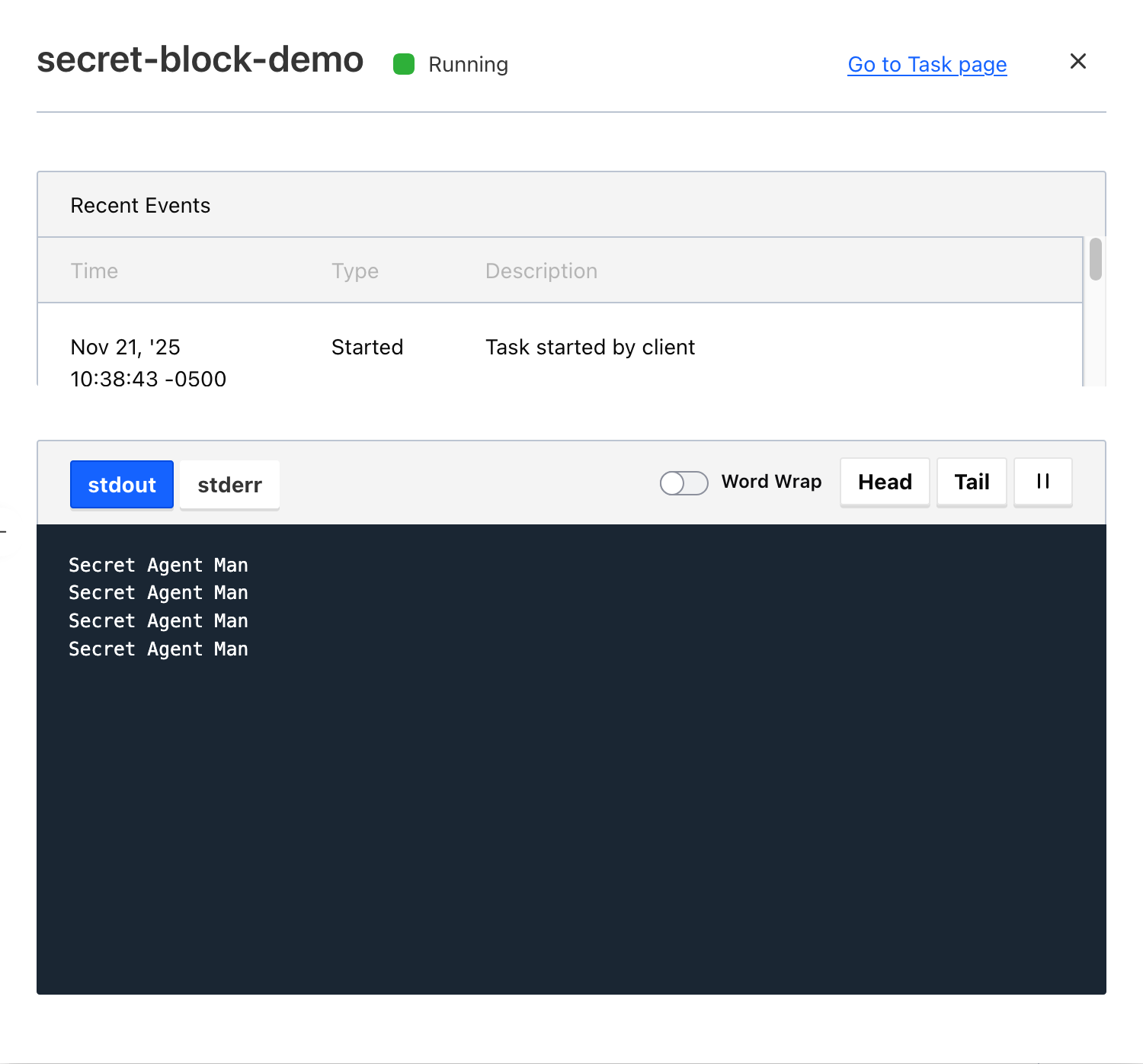
Verifying this works as expected, we can see the same secret being printed out by the task:
Pulling Multiple Secrets with the Secret Block#
You can also use multiple secret blocks in a single job specification. In this example, I am pulling one secret from kv/data/default/multi-secret-block-demo and another from kv/data/global-secrets.
My workload identity and role will allow any secret to be pulled from global-secrets, and then any job specific secrets can be pulled from their respective paths dynamically.
In this set up, I define both secrets at the job level.
Then I reference them in the task using ${secret.job_secret.job} and ${secret.global_secret.global}.
job "multi-secret-block-demo" {
  type = "service"
  datacenters = ["dc1"]

  secret "job_secret" {
    provider = "vault"
    path     = "kv/data/default/multi-secret-block-demo"
    config {
      engine = "kv_v2"
    }
  }

  secret "global_secret" {
    provider = "vault"
    path     = "kv/data/global-secrets"
    config {
      engine = "kv_v2"
    }
  }

  group "multi-secret-block-demo" {
    task "multi-secret-block-demo" {
      driver = "exec"

      vault {}

      config {
        command = "/bin/sh"
        args = [
          "-c",
          "while true; do echo \"Job: ${secret.job_secret.job}, Global: ${secret.global_secret.global}\"; sleep 5; done"
        ]
      }
    }
  }
}
Verifying this works as expected, we can see both secrets being printed out by the task:
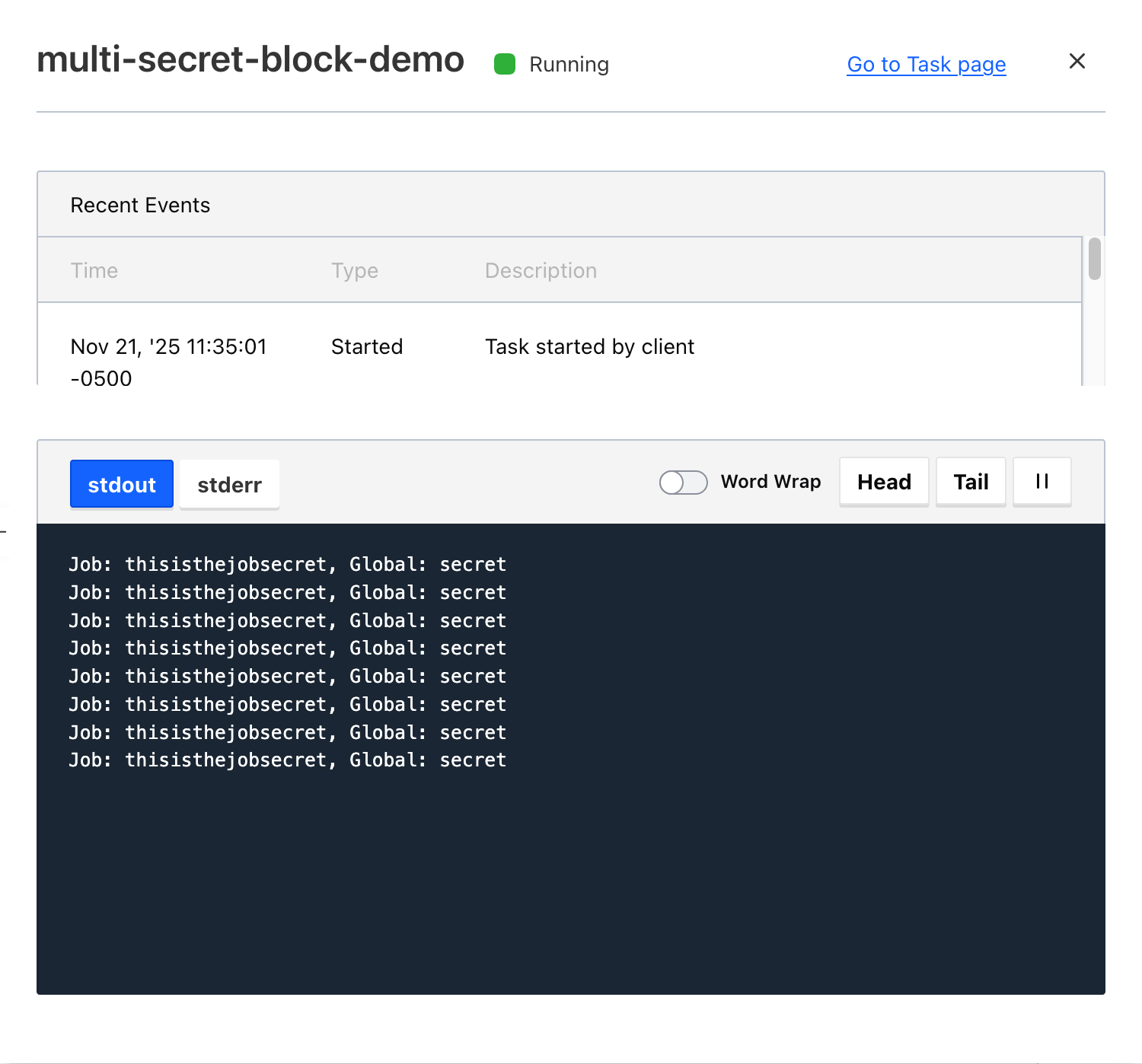
As shown in the output, both secrets are successfully retrieved and displayed.
Using the Secret Block with Env Block#
In my previous two examples, I directly referenced the secret in the task’s config block. This last demo I want to show is using the secret block in conjunction with the task’s env block to set environment variables for the task. So if you have a workload which checks for the existence of environment variables for authentication or configuration, you can use this method to set them.
For this let’s say you have a simple, but repetitive task of uploading processed files from our private datacenter to an S3 bucket that has been running as a cron job on a server for years. The server, appropriately named “DO-NOT-DELETE”, has served you well, but it is time to send it on its way to retirement and migrate this workload to Nomad.
So to keep this simple so any future administrator or engineer can understand, we will leverage the AWS cli to upload files to S3. Which we will need to provide our AWS credentials to the task as environment variables.
Here is how we can accomplish this using the secret block to fetch our AWS credentials and set them as environment variables in the task’s env block.
Store your AWS credentials in your secrets manager. In my case, I will be using Nomad variables with the path
nomad/jobs/s3-uploaderand my necessary AWS environment variables.Create a Nomad job specification that uses the
secretblock to fetch the AWS credentials and set them as environment variables in the task’senvblock. I’m going to useraw_execas the driver to keep it simple and just run a shell command to upload files to S3. The AWS cli is already installed on my Nomad client.
job "s3-uploader" {
  type        = "batch"
  datacenters = ["dc1"]

  secret "aws_credentials" {
    provider = "nomad"
    path     = "nomad/jobs/s3-uploader"
  }

  periodic {
    crons            = ["@hourly"]
    prohibit_overlap = true
  }

  group "s3-uploader" {
    task "s3-uploader" {
      driver = "raw_exec"

      env {
        AWS_ACCESS_KEY_ID     = "${secret.aws_credentials.AWS_ACCESS_KEY_ID}"
        AWS_SECRET_ACCESS_KEY = "${secret.aws_credentials.AWS_SECRET_ACCESS_KEY}"
        AWS_DEFAULT_REGION    = "${secret.aws_credentials.AWS_DEFAULT_REGION}"
      }

      config {
        command = "/bin/sh"
        args = [
          "-c",
          "aws s3 sync /data/processed s3://the-bucket-i-will-use-for-this-nomad-demo/"
        ]
      }
    }
  }
}
For this, I want to focus how I am specifically using the secret block to fetch my AWS credentials from Nomad variables at the path nomad/jobs/s3-uploader. Then in the task’s env block, I am setting the necessary AWS environment variables by referencing the secrets using ${secret.aws_credentials.<KEY>} syntax. With that set, I should be able to submit this job and at execution time, it will pull the latest AWS credentials and use them to authenticate with S3.
- I’m too impatient so I will launch the job manually instead of waiting for the periodic schedule and verify it works as expected.
upload: /data/processed/1 to s3://the-bucket-i-will-use-for-this-nomad-demo/1
Completed 1 file(s) with 2 file(s) remaining
upload: /data/processed/3 to s3://the-bucket-i-will-use-for-this-nomad-demo/3
Completed 2 file(s) with 1 file(s) remaining
upload: /data/processed/2 to s3://the-bucket-i-will-use-for-this-nomad-demo/2
You could make this a bit more robust and use a poststop task to clean up the folder after the upload, but for time being this works and it would keep your files in sync.
Before I finish writing a book, I will stop here and hope that you find this guide useful for understanding how to use the new secret block in Nomad 1.11.x to fetch secrets for your workloads.
In Summary#
For use cases when you need to fetch secrets for authenticating to pull images or artifacts, the new secret block in Nomad 1.11.x simplifies the process by allowing direct references in your job specification, while also providing an alternative to using the template block when appropriate.
When needing to pass a secret into your workloads, both the template and secret blocks have their own use cases and can be used together if needed:
| Method | Template Block | Secret Block |
|---|---|---|
| Location | task block only | job, group, or task block |
| Syntax | templating | direct reference |
| Reusability | limited to task level | dependent on placement in the job |
| Ease of Use | more robust, with a tradeoff on complexity | simpler and more straightforward |
| Secret Providers | Vault, Nomad, Consul, local files | built-in Vault and Nomad, extensible via plugins |
| Use Cases | complex templating needs | simple secret retrieval |
| Workloads | longer running or dynamic workloads | single execution, batch, dispatched, periodic |